
eBay Integration Settings
Here's a detailed explanation of how you can customise your eBay integration settings to ensure that your shipping process with our Shipping Manager is both efficient and perfectly aligned with your specific needs.
Set Your Settings For Your eBay Store
Follow these steps to change the settings for your eBay integration:
- Hover over the Shipping Tools tab, select eCom Platforms and click eBay. Click the Manage button, next to the eBay icon.
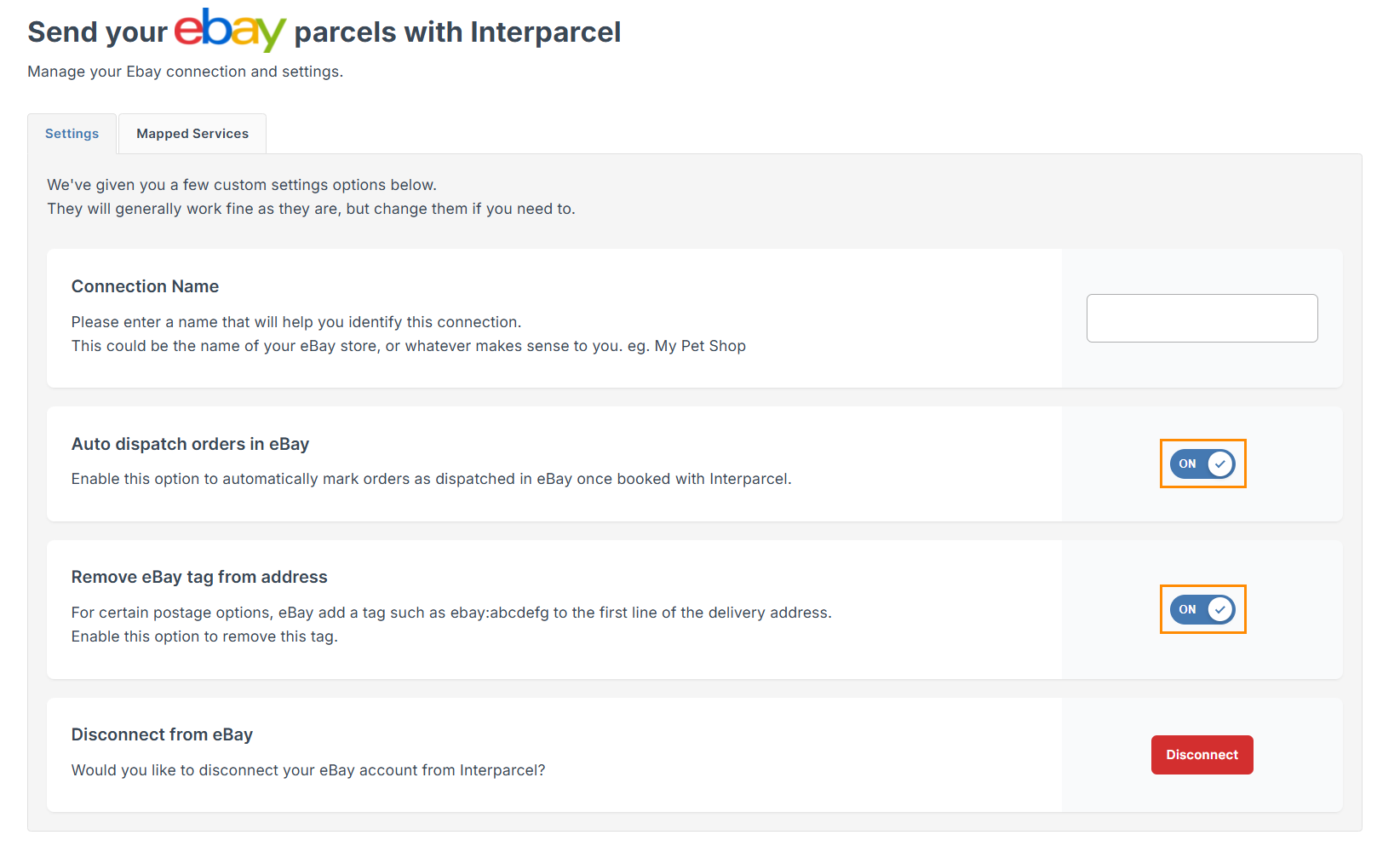
- In the Settings tab, you can toggle the following options to streamline how orders are handled:
- Auto-despatch Orders: When enabled, every time you book a shipment through Interparcel, the order will be automatically marked as dispatched in your eBay store.
- Remove eBay Tag from Address: eBay sometimes appends a unique tag (e.g., ebay:abcdefg) to the first line of the delivery address. Enable this option to automatically strip this tag for a cleaner shipping label and better carrier compatibility.
- To further automate your workflow, navigate to the Mapped Services tab (located next to the Settings tab). When a buyer selects a specific shipping method on eBay, you can pre-assign it to your preferred Interparcel service. This ensures that when your orders are imported, the correct carrier and service level are already selected.
- Click Save Mapped Services to save the changes.
- You're all set up! You can use the Shipping Manager Guide to assist you in importing your orders into your Interparcel account and fulfilling them.


Other Relevant Guides
- Send Email and SMS Tracking Notifications
- Set up Branded Tracking
- Send Your Orders Via our Shipping Manager
Didn't Find What You're Looking For?
If you have any questions or concerns regarding your integration or questions about how to send your order simply email us at shippingtools@interparcel.com.au, and we'll provide the assistance you need.