
Connect to Squarespace
Connecting your Squarespace store to Interparcel allows you to import your orders automatically, saving you time and reducing manual entry errors.
Follow these steps to connect your store:
Step 1: Obtain your Squarespace API Key
Before you begin, please note that you must be on the Squarespace Commerce Advanced Plan to use the Squarespace API.
- Log in to the admin area of your Squarespace site and click on the Settings icon.
- Select Developer Tools.
- Click on Developer API Keys
- Click on the GENERATE KEY button.
- Set the Key Name to Interparcel. Under the Permissions section, select the following:
- Products: Read Only
- Inventory: Read Only
- Orders: Read and Write
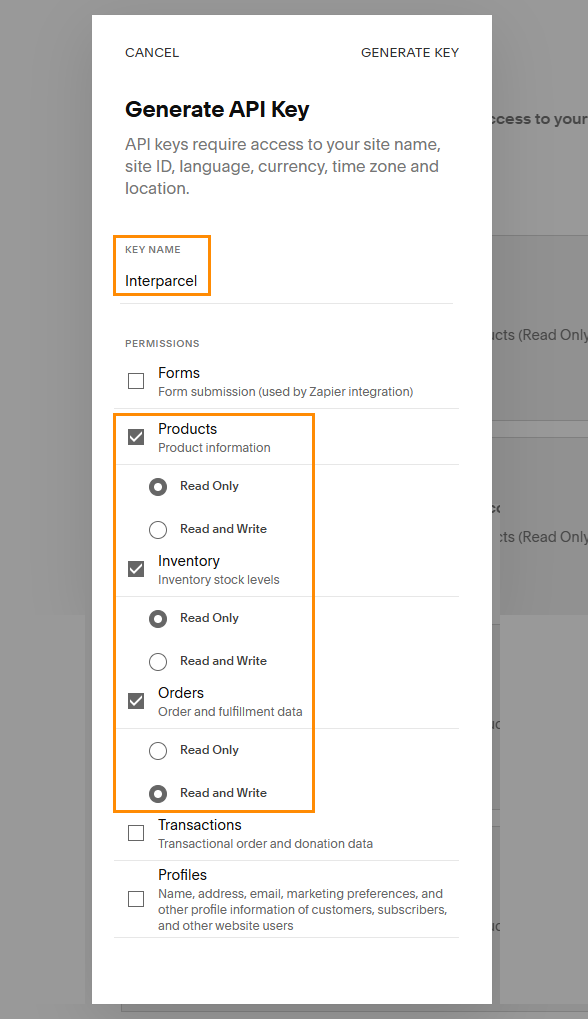
- Press GENERATE KEY in the top right of the popup window.


Important: Copy the API Key that is displayed and save it somewhere safe. For security reasons, Squarespace will not show this key again once you close the window.
Step 2: Connect to Interparcel
Once you have your API Key, you can finalize the connection within your Interparcel account.
- Log in to your Interparcel account. Hover over Shipping Tools, select eCom Platforms and click on Connect your cart. Press the Connect button for Squarespace.
- On the Squarespace connection page, enter a name to help you identify this connection, paste your new API Key into field and click Connect.


Your Squarespace store is now connected! Your orders will begin to sync to your Interparcel dashboard, ready for you to book your shipments.
Other Relevant Guides
- Send Your Orders Via our Shipping Manager
- Set up Branded Tracking
- Send Email and SMS Tracking Notifications
Didn't Find What You're Looking For?
If you have any questions or concerns regarding your integration or how to send your orders, simply email us at shippingtools@interparcel.com.au, and we'll provide the assistance you need.