
Import Orders Via CSV (Excel)
Need to process a batch of orders but don’t have an ecommerce store?
No problem! You can upload them straight into the Interparcel Shipping Manager using a CSV file.
Follow these simple steps to get started:
- Log in to your Interparcel account. Hover over the Shipping Tools tab and click Shipping Manager.
- Click the Fetch Orders button and select Import from CSV.
- You can upload your orders in two ways: using our Default Interparcel Template or by creating a new template if you have your own. Select your preferred option from the drop-down menu.
- If you’d like to use our template, download it by clicking Download an example.
- Copy and paste your orders into the file. Keep these points in mind when filling out the template:
- If you're sending domestic shipments, fill in all the Delivery fields, the Customer Reference Number, and all the Parcel fields. By importing these fields, you can run a quote on our platform and select the delivery service that best suits your needs. If you already know which service to use, also fill in the following fields:
- Service: Indicate the exact name of the service you would like to use. Make sure to use the name exactly as displayed on our services pages. For example, for CouriersPlease Box ATL, you should write Couriers Please Box ATL.
- Pickup_Date: Enter the pickup date in the format DD/MM/YYYY. Please note that collections can only be booked on weekdays, up to two weeks in advance.
- Earliest_Time and Latest_Time: Standard services collect parcels between 9am and 5pm, so you would enter 9 in the Earliest_Time field and 5 in the Latest_Time field. Timed services may offer different collection windows. You can check these by clicking the (i) icon when requesting a quote on our shipping calculator to see the available collection times.
- Transit_Cover: Enter Y or N to indicate whether you’d like to add transit cover. Please note that Interparcel automatically includes a transit warranty of up to $100 for the item’s value, but it does not apply to ATL (Authority to Leave) services.
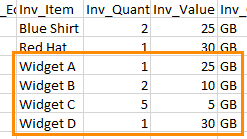
- If you're sending international shipments, you’ll also need to complete any fields that start with "Inv_". These fields are used to generate your Commercial Invoice, which is required for sending parcels overseas. If your parcel contains more than one item, follow the steps below to add each item to the Commercial Invoice:
- Copy and paste the row for each item in your parcel.
- Enter the parcel weight and dimensions on one row only. For the duplicate rows, set the weight and dimensions to 0.
- Update the item details on each row to match the items in the same parcel. Edit the following fields for each row: Inv_Item, Inv_Quantity, Inv_Value, Inv_Country, and Inv_HS_Code.
- If you're sending two boxes of the same weight and size to the same address, indicate "2" in the Parcel_Quantity field.
- If you're sending two different boxes to the same address, use a separate line for each and make sure they share the same Customer Reference Number.



- If you're sending domestic shipments, fill in all the Delivery fields, the Customer Reference Number, and all the Parcel fields. By importing these fields, you can run a quote on our platform and select the delivery service that best suits your needs. If you already know which service to use, also fill in the following fields:
- Drag and drop your CSV file or upload it by clicking inside the box.
- If you're uploading a new template, you’ll be asked to name it and match your column headings with the Interparcel field names (e.g. Name, Address, Postcode, Weight). Once mapped, click Save & Continue. If you're using the Interparcel template, your orders will import automatically.
- You will now see all your orders in the Shipping Manager.
- If there is a multi-item order, it will appear as one order with two parcels.


You’ve now successfully uploaded your orders via CSV!
Other Relevant Guides
Didn't Find What You're Looking For?
If you have any questions or concerns regarding your integration or questions about how to send your order, simply email us at shippingtools@interparcel.com.au, and we'll provide the assistance you need.