
WooCommerce Integration Settings
Here's a detailed explanation of how you can customise your WooCommerce integration settings to ensure that your shipping process with our Shipping Manager is both efficient and perfectly aligned with your specific needs.
Set Your Preferences For Your WooCommerce Store
- You can set up your preferences before sending your WooCommerce orders with our Shipping Manager. To do that, hover over the Shipping Tools tab, select eCom Platforms and click WooCommerce. Click Manage next to the WooCommerce icon.
- In the Settings tab you will be able to enable and disable the following features:
- Automatic Order Import: Enable this option to import new orders to your Interparcel account within seconds of them being received. The orders will automatically appear in the Shipping Manager section of your account in real time.
- Import orders for all couriers: Enable this option if you want to import all orders into your Interparcel account, regardless of the courier service that your customer picked.
- Auto dispatch orders in WooCommerce: Enable this option to automatically mark orders as dispatched in WooCommerce once booked with Interparcel.
- Weight in Grams: Enable this option if your WooCommerce store is set to use Grams instead of Kg.
- Dimensions in Millimeters: Enable this option if your WooCommerce store is set to use Millimeters instead of Centimeters.
- Product Tag to Ignore: Type a tag to ignore any products containing that tag when importing orders.
- If you're not intending to provide live shipping quotes at your store checkout, and instead utilise flat rate or free shipping, you're now set up to start processing your orders. You can use the Shipping Manager Guide to assist you in importing your orders into your Interparcel account and fulfilling them.
- In the Cart Quoting tab you will be able to enable and disable the following features to display live shipping rates at checkout:
- Plugin Download: You will need to download this plugin and install it if you would like to display live shipping rates at checkout. See how to enable live shipping rates for your WooCommerce store here.
- Auth Key: When indicating Interparcel within your shipping zones in WooCommerce, you will be prompted to enter this key into the Interparcel shipping rate to authenticate the connection.
- Same Day Despatch Cut Off Time: Set the latest time you despatch orders. This time won't be shown at checkout, it's used by Interparcel to calculate the transit time estimates. This feature will work only if you enable the Display Transit Time option.
- Handling Charge: You can add an additional handling charge to your shipping rates to cover packaging and handling costs. This can be indicated as a fixed amount or a percentage, such as 3.95 or 3%.
- Display Transit Time: Enable this option to display delivery estimated time at checkout.
- In the Cart Services tab you can toggle on and off the couriers services you would like to display at checkout. If you enter in a display name for that courier service, this is the service name that will appear at your checkout.
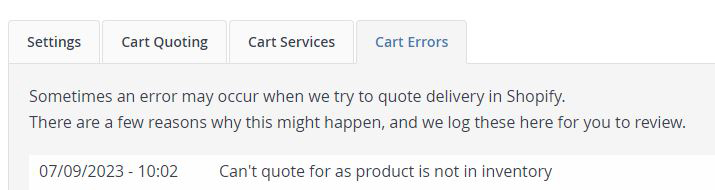
- The Cart Errors tab will list and timestamp any errors if the live quoting feature is unable to supply a quote at your checkout. This tab will be blank if there weren't any errors or If you didn't activate the live shipping rates at checkout.
- Note that to set up for live rates at your WooCommerce checkout, you will need to follow an additional guide. See how to set up your Interparcel account and WooCommerce store to activate live shipping rates for your checkout here.


Other Relevant Guides
- Send Your Orders Through the Shipping Manager
- Send International Orders
- Activate Live Shipping Rates At Checkout
Didn't Find What You're Looking For?
If you have any questions or concerns regarding your integration or questions about how to send your order simply email us at shippingtools@interparcel.com.au, and we'll provide the assistance you need.