
Printing Picking and Packing Lists
Staying organised is the best way to avoid mistakes. You can make your fulfilment process much smoother by printing picking and packing lists directly from your Interparcel Shipping Manager. These documents help you keep track of your stock and ensure your customers receive exactly what they ordered.
Use the links below to quickly navigate this guide:
- How it works
- Customising your Picking and Packing List Settings
- Setting up Bin Locations (For Shopify)
- How to print from the Shipping Manager
How it works
Once you have connected your ecommerce store to Interparcel, you can import your orders into the Shipping Manager. You can then generate picking and packing lists for these orders. Please note that we use the product data retrieved directly from your connected store to generate these packing and picking lists.
- Picking List: Think of this as your "shopping list." It combines all the items from your selected orders into one list so you can grab everything from your shelves in one trip.
- Packing List: Individual slips for each order that detail the specific items to be packed. It’s a great idea to pop these inside the package so the customer can verify their items when they open their parcel.
New to integrations? If you haven't connected your store yet, follow our easy Ecommerce Platform Integration guides to get set up.
Customising your Picking and Packing List Settings
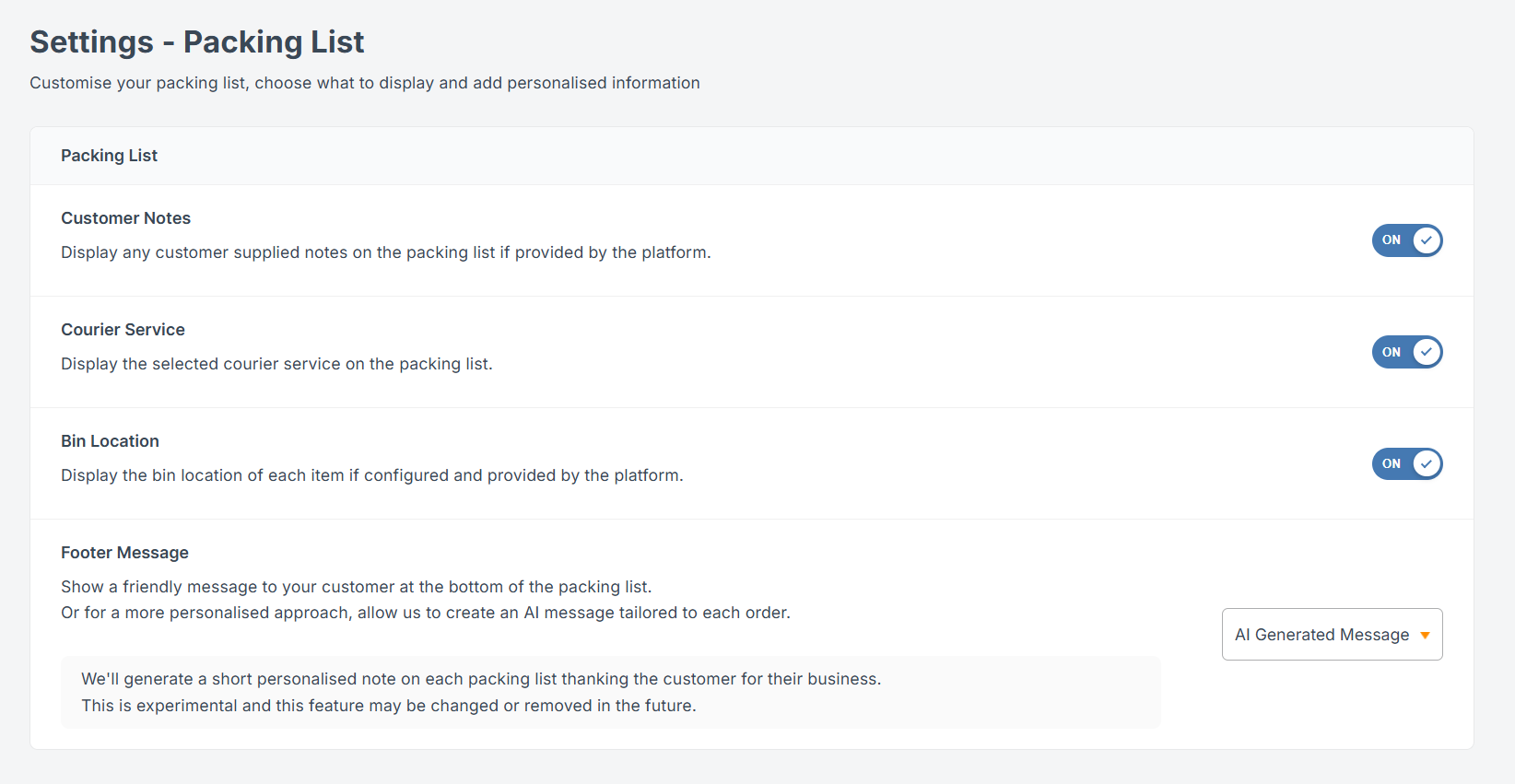
Before you start printing, you can tailor your picking and packing lists to suit your business needs. To access these options, go to the left-hand menu of your Interparcel dashboard, and under Settings, click on Packing List.
You can customise the following features:
- Customer Notes: Toggle this on to display any specific delivery or order notes provided by your customer (if your ecommerce platform provides them).
- Courier Service: Enable this to show the selected courier service name on the packing list.
- Bin Location: Enable this to display exactly where the item is located in your warehouse (see the Shopify setup guide below to set it up on Shopify).
- Footer Message: Add a friendly "Thank You" or promotional message at the bottom of the list. You have two options:
- Custom Text: Write a standard message yourself.
- AI Generated Message: Use our AI tool to create a personalised message tailored specifically to each individual order.
Setting up Bin Locations (For Shopify)
To save time as you grow, you can tell Interparcel exactly where each item is kept in your warehouse (like "Aisle 1" or "Shelf B"). This is called a "Bin Location." When you set this up in Shopify, we’ll print that location right on your picking and packing list.
To set this up in Shopify:
- Log in to your Shopify Admin and navigate to your Products list.
- Click on a specific Product (or Variant).
- Locate the field labelled BIN and enter the shelf or aisle location. If you have variants of the product, you can add a BIN location for each variant.
- Click Save to save your changes.


When these orders import to Interparcel, the Bin information will be included on your generated lists.
How to print from the Shipping Manager
Follow these steps to generate your documents:
- Log in to your Interparcel account, hover over the Shipping Tools tab and click Shipping Manager.
- Click Fetch Orders and select your online store.
- Select the orders you wish to process by ticking the checkboxes on the left-hand side or select them all.
- To generate a combined list of items for stock retrieval, click the Picking List button.
- To generate individual slips for each package, click the Packing List button.


A PDF will be generated containing your requested lists, which you can then print using your standard printer settings.
Other Relevant Guides
- Activate Live Shipping Rates For Shopify
- Send Your Orders Through the Shipping Manager
- Activate Smart Boxing
Didn't Find What You're Looking For?
If you have any questions or concerns regarding your integration or questions about how to send your order simply email us at shippingtools@interparcel.com.au, and we'll provide the assistance you need.