


Step 1: Get a Quote
You will find our Shipping Calculator on our homepage or quote page. Select the Parcel or the Same Day tab if you need urgent local delivery.
Enter the following details to get your quote:
- Collection and Delivery: Enter the Country and the Suburb or Postcode for both the sender and the receiver. For international shipments, you only need to select the country for the overseas address. You’ll add the full address in Step 2. If you're logged in to your Interparcel account, you can save collection and delivery addresses here. To use them on our shipping calculator, just click the 'Person Icon' and choose the one you want to use.
- Weight: Enter the weight in kg (e.g., 500g should be entered as 0.5kg).
- Dimensions: Enter the Length, Width, and Height of the parcel in cm (e.g., 1m is 100cm).
- Multiple Parcels: If you are sending more than one item, click the + icon to add additional rows.

Once finished, click Get a Quote.
[TIP] To ensure your shipping quote is as accurate as possible, always measure your parcel after it has been cushioned and sealed, as packaging can alter its final size. We also recommend adding a small buffer to these dimensions to account for any slight shifts or compression during transit, helping you avoid unexpected additional fees.
If you want to learn how to get your measurements right, check out our guide on how to measure and weigh your shipment. To keep your items safe and reduce the risk of damage, take a look at our guide on how to pack a parcel.
After clicking Get a Quote, you will see a list of available services tailored to your delivery. Please note that prices are calculated based on the greater of the dead weight or the volumetric weight.
On this page you can:
- Sort results: Use the Sort By menu to change the order of the services, for example by cheapest or fastest.
- Show prices including GST: Tick Show Price Inc GST to see prices with GST included.
- Filter by collection date: Tick Collected Today or Collected Tomorrow to only see services that can pick up your parcel on that day.
- Filter by courier: Tick one or more couriers under Couriers to only see their services.
- Save for later: Click Email Quote to send these results to your inbox.

Understand the information from each service:
Before booking, check the specific details for each courier option:
- Collection: Displays the earliest date a courier can pick up your parcel.
- Estimated Delivery: Provides an approximate timeframe for when your parcel will arrive.
- Transit Warranty:
- No Warranty Included: Transit cover cannot be purchased for this service.
- $100 Incl. Warranty: The first $100 of your parcel's value is covered. You can purchase additional 'Enhanced Transit Warranty' in the next step if your item is worth more.
- Printer Needed: This tag indicates you must have access to a printer to print your shipping labels and attach them to your parcel.
- Prepay Duties & Taxes (International only): This allows you to pay customs fees upfront so your recipient doesn't have to pay them upon arrival. This is optional.
- Information Icon (i): Click this for a full service description. We highly recommend reading this to check for details like ATL (Authority to Leave) or B2B (Business to Business) requirements.


Once you’ve found the best fit for your needs, click Book to proceed.
Step 2: Enter Your Shipment Details
Once you have selected your service, please provide the following shipment details to proceed:
- Account Details: Enter your email address and choose a password if you wish to create an account. Having an account provides better visibility and tracking for all your bookings. If you are already logged in, this step will be skipped automatically.
- Sender Information: If you are booking as a guest, you will be prompted to enter your name, company name (if applicable), and phone number.
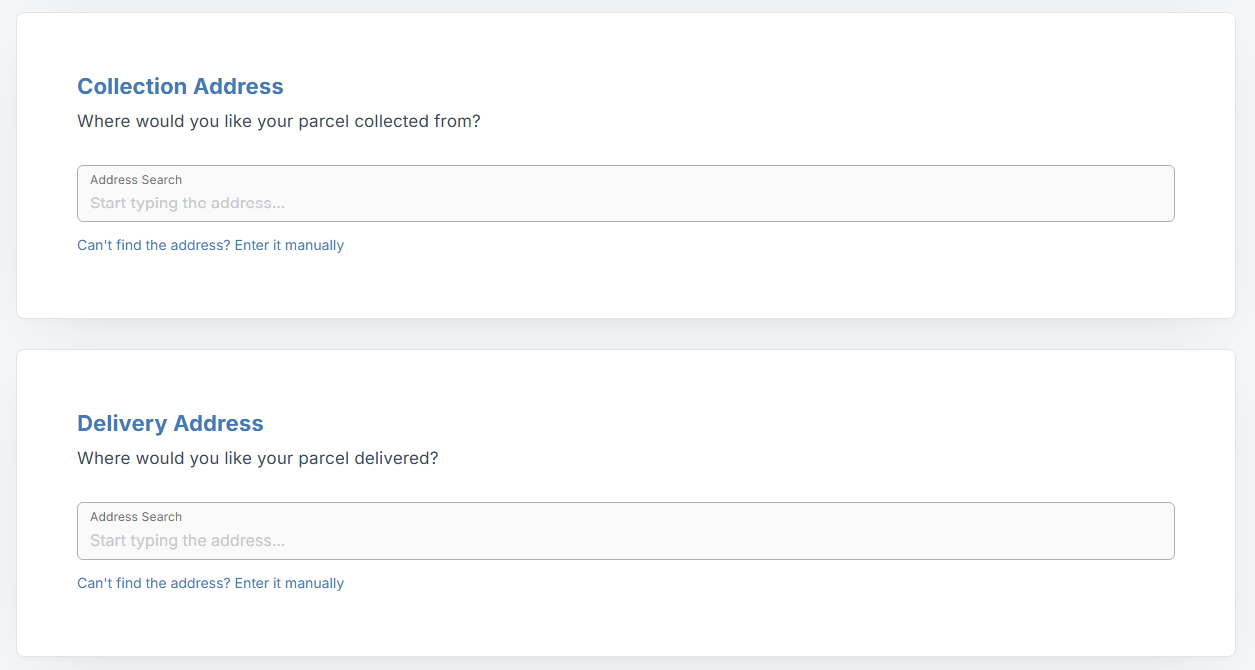
- Address Details: Enter the full Collection and Delivery details for your shipment.
- Search for the address: Start typing the address in the Address Search field and select the right one from the list. You can also search by business name (for example, Bunnings) and the matching addresses will appear. If your address doesn't appear in the list, click Can't find the address? Enter it manually and fill in the address fields yourself.
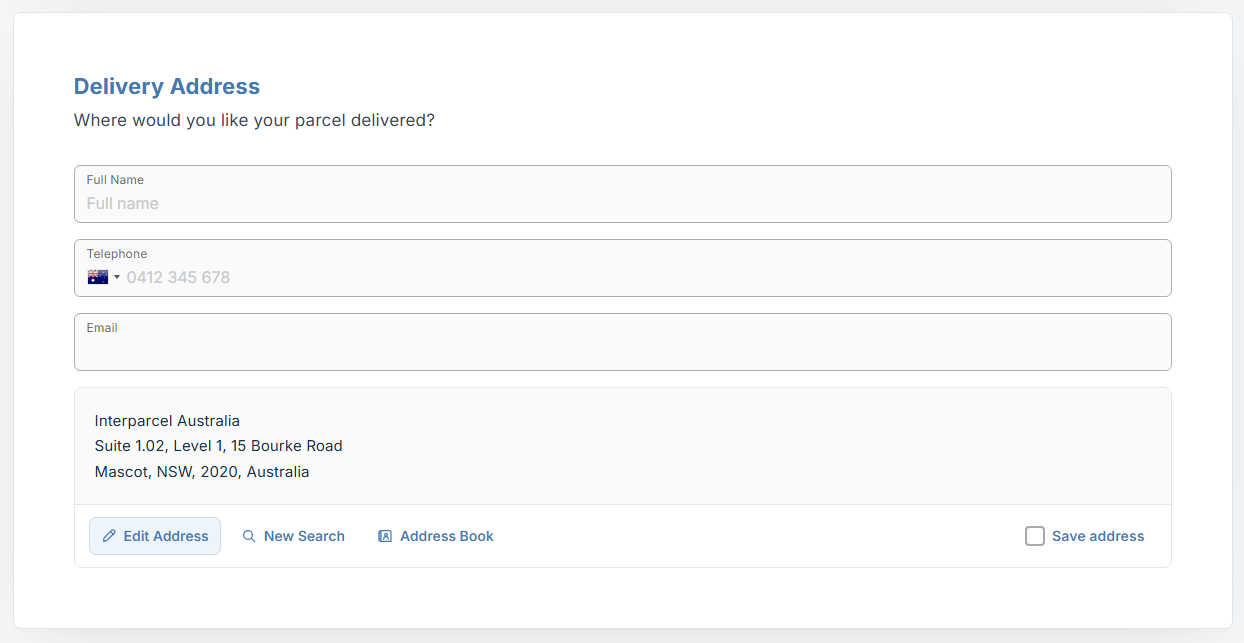
- Add the contact details: Once you've added the address, enter the contact's Full Name, Telephone and Email.
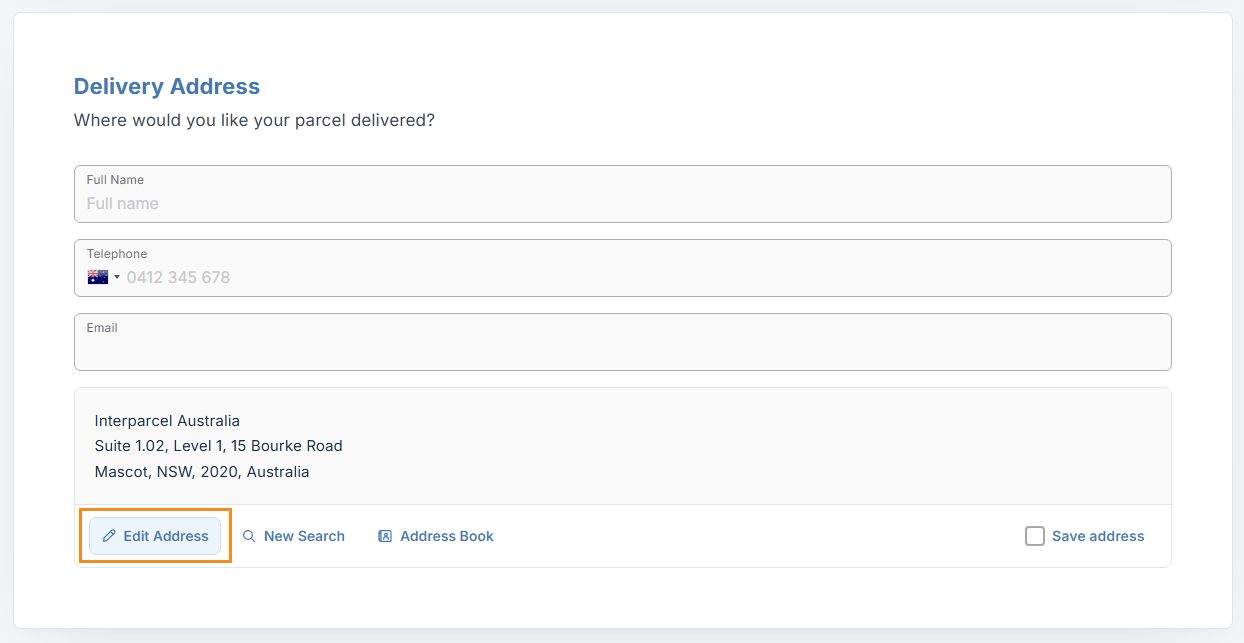
- Edit the address if needed: Click Edit Address to add a company name or update the street details. If an address is long, use both the Address Line 1 and Address Line 2 fields. The suburb or city, state, postcode and country can't be edited. If any of these are wrong, click New Search and look up the address again.
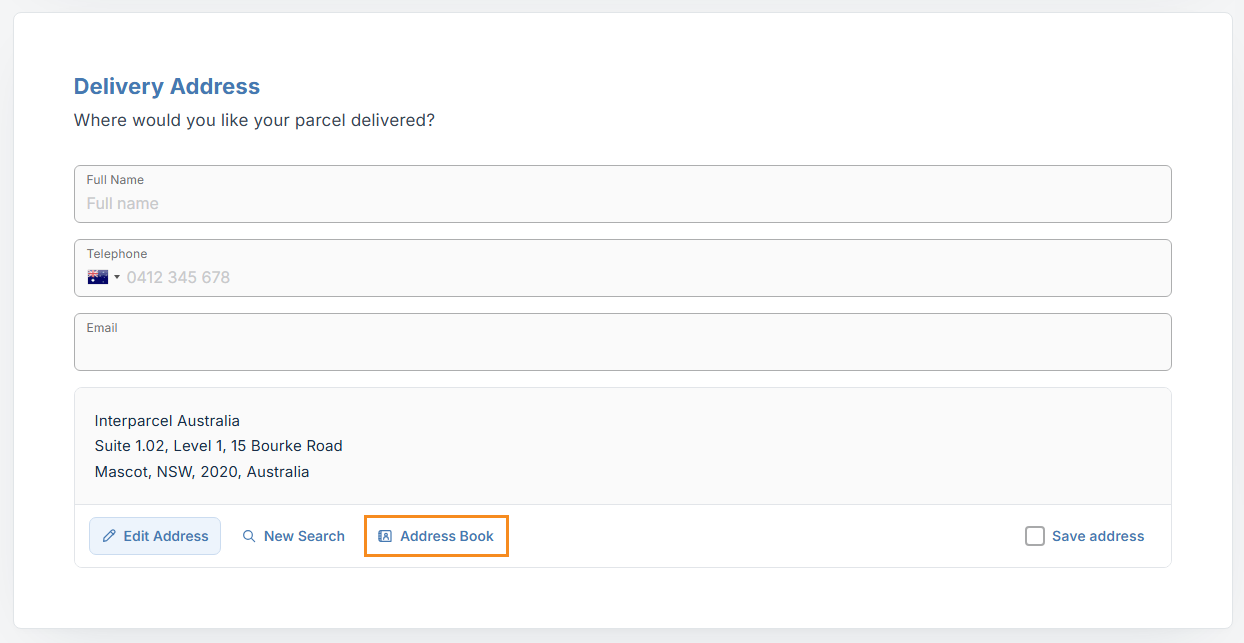
- Use your Address Book: If you have an Interparcel account, click the Person Icon or Address Book to choose a saved address. Tick Save address to store a new address for next time.
[TIP] If the price of your shipment changes after you select the address, it means the address is in an extended area. Couriers charge an extra fee for these locations, and the updated price includes this fee.
- Collection Date & Time: Select your preferred date and time slot for the courier to pick up your parcel.
- Parcel Details: Provide a detailed description of what items are inside your parcel. Please review our Prohibited and Restricted Items List and tick the box to confirm you have read it. You must also declare the total value of the items.
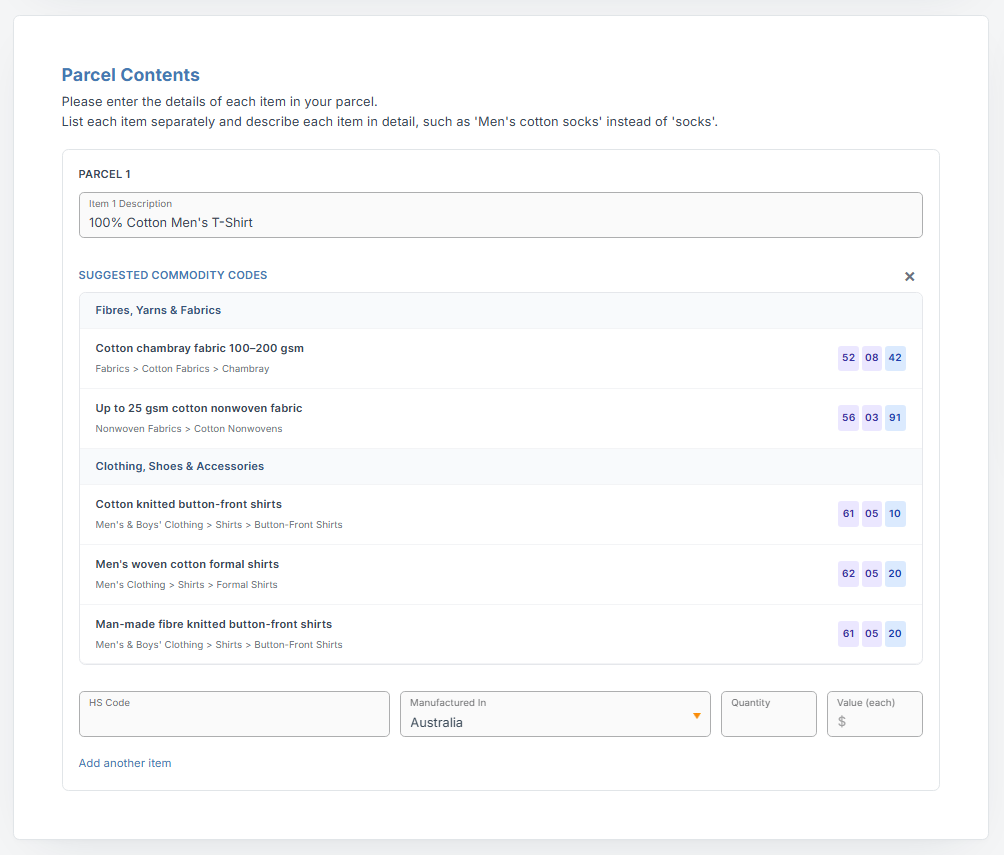
[TIP] Click on the ? icon for extra information or guidance. - Parcel Contents (International Only): List each item in your parcel separately and provide:
- Item Description: Describe each item in detail, for example '100% Cotton Men's T-shirt' rather than just 'Clothes'. The more specific you are, the better the HS Code suggestions will be.
- HS Code: Once you add the item description, we'll show you a list of Suggested Commodity Codes. Select the one that best matches your item and it will fill in the HS Code field for you. Make sure you check the code is right for your item, as this is how customs classify it in the destination country.
- Manufactured In: Select the country where the item was made.
- Quantity and Value (each): Enter how many of the item you're sending and the value of one item.
- Click Add another item if your parcel contains different types of goods.
- Customs Invoice (International Only): We'll create your customs invoice automatically. Customs use it, along with your item details, to clear your shipment and work out any duties and taxes. Please make sure everything you enter here is accurate, as it will be used to calculate your duties and taxes. You'll need to provide:
- Reason for Export: Select why you're sending the parcel, for example a sale, gift, return or sample. Depending on the reason you choose, you may need to provide further information.
- Sender's Tax Status: Select whether the sender is a private individual or a company.
- Receiver's Tax Status: Select whether the receiver is a private individual or a company.
If the sender or receiver is a company, you'll need to provide further information, such as an ABN or other tax identification numbers. You can save your tax details in your settings within your Interparcel account so they apply automatically to every shipment.
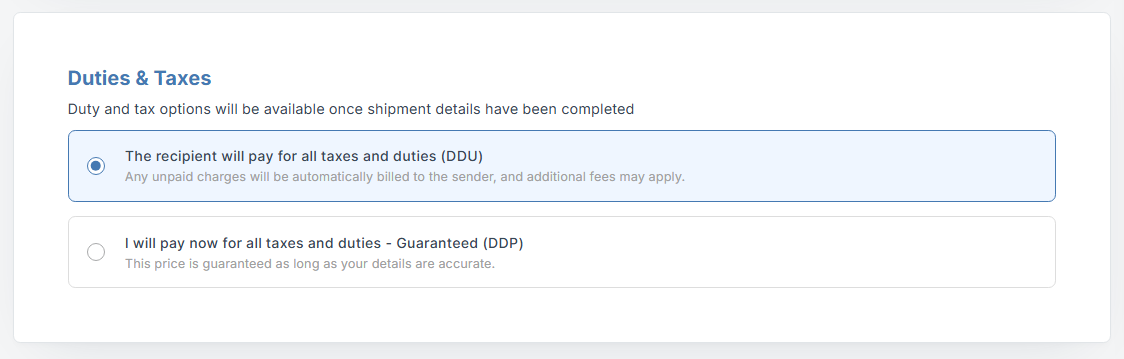
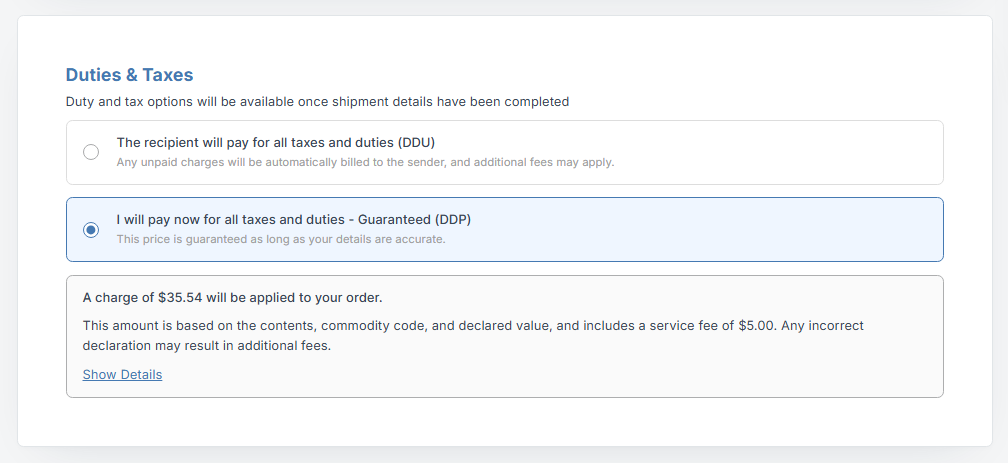
- Duties & Taxes (International Only): Decide how the customs charges should be handled:
- The recipient will pay for all taxes and duties (DDU): The receiver is responsible for all charges. Please note: if the recipient refuses to pay, the parcel may be held, abandoned, or returned to you, with any outstanding costs and RTS (Return To Sender) fees billed to the sender.
- I will pay now for any taxes and duties - Guaranteed (DDP): Our system will calculate the duties and taxes based on your description. You can click Show details for a full breakdown. These charges will be added to your total at checkout so the receiver has nothing to pay.
- Notifications: Choose how you want the receiver to get tracking updates for their parcel. Email notifications are free and cover the whole journey, from booking to delivery. SMS notifications are sent at the Out for delivery and Delivered stages and cost 40c (+GST) per message.
- Click Next to proceed to the final payment step.


Step 3: Process the Booking
On this page, you will see a summary of the shipments in your cart. If you wish to send more items, click Add another shipment and follow the previous steps again.
You also have the option to Delete all shipments or apply a discount by clicking Click here to add a promo code.
You can choose from the following payment methods:
- Credit/Debit Card: Enter your card details. Otherwise, if you have an account, you can store your card details here for faster checkout.
- Prepay: This is a balance-based option available to Interparcel account holders. You can top up your account on the Prepay page to streamline future bookings.
- PayPal: Select this option to pay securely via your PayPal account.

After selecting your payment method, you will need to read and accept our Terms of Use. Once the payment is processed, please stay on the page to access your shipping documents, which are required to send your shipment.
Step 4: Print and Attach Your Label
After completing your booking, you will be redirected to a confirmation page containing all the necessary shipping documents.
- Domestic Shipments: Print your shipping label and secure it firmly to your parcel. Please note: if you have booked a Same Day Express service, you do not need to attach any labels or documentation to the parcel, as the courier will manage this for you.
- International Shipments: Print your shipping label and three copies of the Commercial Invoice. Secure your label to the parcel, and place the three invoices into a clear pouch or envelope attached to the outside of the box. Depending on the destination and the items being sent, additional documentation may be required. We recommend researching the specific regulations of the destination country before sending to ensure full compliance.

You will also receive a confirmation email containing all your shipping documentation and detailed instructions for your chosen service.
If you need help packaging your parcel, check out our guide here for simple, step-by-step instructions.
Don't Let Shipping Become a Challenge.
We're Here to Assist!
At Interparcel, we believe in keeping a personal connection in everything we do.
If you have any enquiries, our friendly customer support team is ready to help by phone, live chat, or email!
Reach Out to Customer ServiceFAQs
Where can I find my shipping label?
Once you’ve completed your booking, your shipping labels will be available on the confirmation page for immediate download and will also be sent straight to your inbox in your booking confirmation email. If you have an Interparcel account, you can login at any time, hover over My Account, click My Orders, and re-print labels for any active shipments. Please note that all services require a printed label to be secured to your parcel before the courier arrives. The only exception is our Same Day service. While you can write the destination address directly on the parcel, we still provide a printable address label once your booking is finalised. We recommend printing and sticking the label onto the parcel instead.
How should I prepare my parcel for delivery?
To help your items arrive safely and avoid any unexpected fees, it’s best to use a sturdy, double-walled box with a bit of extra room for cushioning. We suggest leaving about 3-5cm of space on all sides and filling the gaps with things like hex wrap or packing peanuts so your items don't move around. Once everything is secure, seal the box using the 'H-taping' method, taping along the centre, side and across the edges to keep it closed tight. Make sure to remove any old labels or barcodes from the box. You can find detailed guidance on how to pack your parcel here.
Can I quote multiple parcels in the same booking?
Yes, you can easily quote and book multiple parcels going to the same destination in one go. In our shipping calculator, simply click the + Add Parcel button to include extra items in your request. This allows you to see a single consolidated quote for the entire shipment and manage all your labels and tracking under one simple booking.
What's an ATL service?
ATL stands for Authority to Leave. If a service is marked as ATL, the courier is authorised to leave the parcel in a safe place at the delivery address if no one is home to sign for it. This is great for convenience, but it does mean the courier’s responsibility ends once the parcel is dropped off. If you’re sending something high-value or the delivery location doesn't have a secure spot, you might prefer to choose a Signature Required service instead.
How do I track my parcel once it’s been collected?
Once your parcel is on its way, you can stay updated using our tracking tool. Simply enter your Interparcel tracking number, which starts with 'AU' and is 12 digits long to see real-time updates. During the booking process, you can also choose how your recipient receives updates. Email notifications are free and can cover the entire journey, from the moment it’s booked to the final delivery. If you prefer SMS updates, these can be sent for the Out for delivery and Delivered stages for 40c (+GST) per message.
Do I need to be home for the courier collection?
Yes, someone needs to be available at the address on your chosen collection date and time to hand the parcel to the driver.
Can I change my booking after I’ve paid?
If you notice a mistake in the address or parcel details after finishing your booking, please reach out to our customer support team as soon as possible via live chat, email or phone. While we can often update details if the courier hasn't been dispatched yet, some changes might require the original booking to be cancelled and re-booked to ensure the courier’s system has the correct information.
What's a B2C and B2B service?
These terms describe the type of destination you are shipping to, but please note that for both service types, your parcel must be collected from a business address. B2B (Business to Business): services are specifically for deliveries to commercial addresses (offices, warehouses, or shops) during standard business hours. B2C (Business to Consumer): services are designed for residential deliveries. It’s important to select the right one in the calculator, as some couriers charge different rates or use different vehicles depending on whether they’re pulling up to a loading dock or a suburban driveway.
Can I purchase transit warranty?
Most of our services include cover for the first 0 of your item's value at no extra cost, except for ATL (Authority to Leave) services, which cannot have a warranty added to them. If you need extra protection for a non-ATL service, you can purchase additional coverage by selecting the Transit Cover option during the booking process. You will just need to enter the total value of your item to calculate the cost. Please keep in mind that for items on our 'Restrict' list, coverage is limited to loss only, not damage. Prohibited items are not allowed to be sent on our network and cannot be covered. It's always best to check our Prohibited & Restricted Items list to ensure your specific items are eligible for coverage.
I can't see the Australia Post services in my quote listing
Don't worry, Australia Post services may not appear in the shipping calculator. However, they will become accessible within your Shipping Manager once you integrate with Australia Post. Click on either Mypost Business or Parcel Contract (eParcel) to learn how to integrate your Australia Post account now.
 Facebook
 Twitter
 Instagram
 Linked In
 YouTube